
Close Menu

    Subscribe to Updates

    Get the latest creative news from FooBar about art, design and business.

    What's Hot

    Mario & Zelda Legend Shigeru Miyamoto Ruthlessly ROASTS His Own Child For Failing At Mario 64: “Does This Kid Have Any Brains?”

    December 22, 2024

    Asmongold Predicts Career-Ending Fallout for Haliey Welch Following Disturbing “Hawk Tuah” Coin Controversy

    December 22, 2024

    Once Obscure Marvel Charcter Jeff the Land Shark To Join Marvel Rivals

    December 21, 2024
    Facebook X (Twitter) Instagram
    Subscribe
    GamiuxGamiux
    Facebook X (Twitter) Instagram YouTube
    • Home
    • Entertainment
      • Kick
      • Twitch
      • Youtube
    • Gaming
    • eSports
    GamiuxGamiux
    Home » Gain an Edge in VALORANT: Best Graphic Settings for Competitive Play in 2023
    VALORANT

    Gain an Edge in VALORANT: Best Graphic Settings for Competitive Play in 2023

    Cecil SalesBy Cecil SalesJuly 4, 2023No Comments3 Mins Read
    Facebook Twitter Pinterest LinkedIn Reddit WhatsApp Email
    Share
    Facebook Twitter Pinterest Reddit WhatsApp Email

    If you play Valorant competitively, having the right settings can give you a big edge over your opponents. Every edge counts in the fast-paced and action-packed world of VALORANT. We’ll talk about the ideal graphic settings for competitive play in 2023 in this blog post.

    Gain an Edge in VALORANT: Best Graphic Settings for Competitive Play in 2023

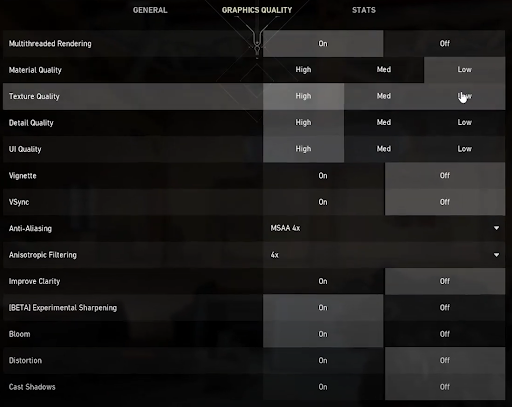
    First of all, most pro players like to play with simple graphics settings so that the game is more stable, the FPS stays high, and the latency is low. VALORANT is no exception. The following are the recommended settings:

    • Reduce the quality of your visuals.
    • Turn on multi-threaded rendering.
    • Turn off vertical synchronization.
    • Anti-aliasing should be set to msaa2x.
    • Set anisotropic filtering to 16x.
    • Change the display mode to full screen.
    • Adjust your resolution to 1080×1920.

    To recognize the enemy hitbox at a distance, you should enable experimental sharpening. Enabling bloom will also improve your visibility of the Sova arrows.

    The settings listed above will differ based on whether you use a laptop or a gaming computer. For laptops, you may need to adjust values that allow you to save battery life or avoid overheating issues.

    That doesn’t really matter on a gaming PC, but always leave the maximum FPS setting disabled or set to 300 or 400 FPS. This will lessen the latency of your game’s rendering.
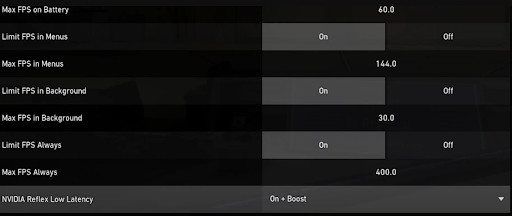
    Turn on the “Low Latency Mode” setting if you have an NVIDIA graphics card. According to NVIDIA, it will cut system latency by 33%. If you have a mid-range graphics card, enable it; if you have a newer one, enable it with boost. But, with laptops, the setting will increase your GPU power consumption.

    It’s also critical to optimize your computer as much as possible. Stop any third-party applications that are running in the background, such as Steam, Epic Games, or Blitz, as these can consume CPU and RAM power for things you don’t need when playing the game.

    Enabling FPS, ping, packet loss, or latency data in the stats lab will help you understand what’s going on and warn you if you’re experiencing FPS or ping issues.

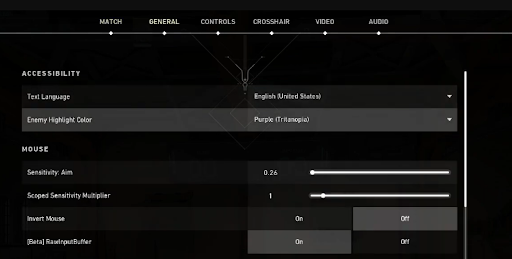
    Another important parameter to consider is the highlight color of enemies. Some people enjoy yellow, while others prefer red. Purple can also be fascinating since it stands out from the background, whereas red and yellow can be lost in the map.
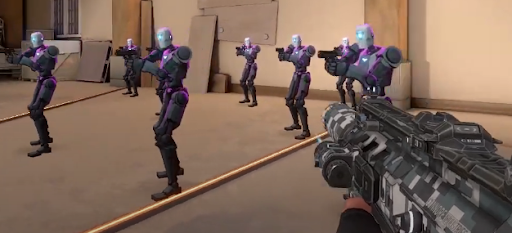
     

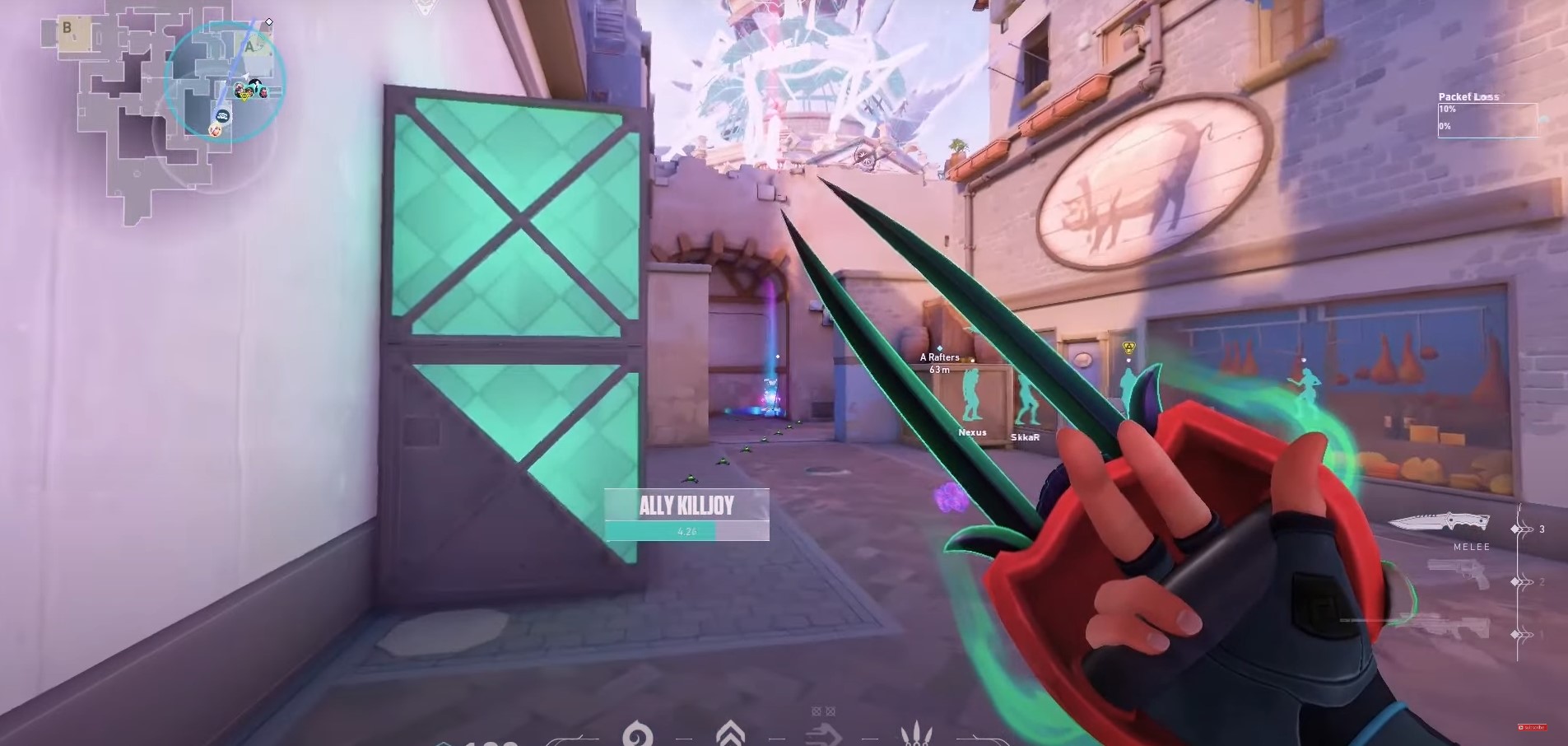
    Finally, brighter colors are the go-to setting for many high-level players when it comes to getting a more colorful game. It makes the game more enjoyable while also emphasizing the powers and enemy outlines.

    Right-click anywhere on your desktop. Choose the NVIDIA control panel and then click on the display tab and on “change desktop color settings.” You will be able to change the digital vibrance. When playing the game, we recommend keeping it at around 80%.

    I really hope that this post was helpful to you. Finding the right graphic settings can be a pain, but hopefully this post has helped you out. Please don’t forget to share your ideas with me by posting them in the comments box below; I’d love to hear from you!

    Best Graphic Settings Valorant
    Share. Facebook Twitter Pinterest LinkedIn WhatsApp Reddit Email
    Previous ArticleUpdate After XQC Joins New Streaming Platform Kick
    Next Article From TDM to New Agents: VALORANT’s Developments Unveiled
    Cecil Sales
    • Website

    Related Posts

    Valorant Coming To Playstation 5, Xbox Series X/S Consoles: A Deep Dive into the Beta

    June 7, 2024

    How to Choose Your Perfect Agent in VALORANT

    March 15, 2024

    How to Improve Your Aim in Valorant: The Top 5 Aim Lab Games

    February 22, 2024

    VALORANT Agent and Map Guide: Best Agents to Play on Icebox

    February 5, 2024

    Top Valorant Agent-DUO Combos You Must Know! 

    February 4, 2024

    10 Mistakes to Avoid in Valorant as a Beginner

    February 3, 2024
    Add A Comment
    Leave A Reply Cancel Reply

    Editors Picks
    Top Reviews
    Our Picks
    • Facebook
    • Twitter
    • Pinterest
    • Instagram
    • YouTube
    • Vimeo
    Don't Miss
    Gaming

    Mario & Zelda Legend Shigeru Miyamoto Ruthlessly ROASTS His Own Child For Failing At Mario 64: “Does This Kid Have Any Brains?”

    By DanarqhyDecember 22, 2024

    The legendary Shigeru Miyamoto, the mastermind behind iconic franchises like Super Mario and The Legend…

    Asmongold Predicts Career-Ending Fallout for Haliey Welch Following Disturbing “Hawk Tuah” Coin Controversy

    December 22, 2024

    Once Obscure Marvel Charcter Jeff the Land Shark To Join Marvel Rivals

    December 21, 2024

    xQc ROASTS Kai Cenat As Nasty Feud Escalates: “I Have AMP’s Entire Net Worth on a USB Stick”

    December 21, 2024
    About Us
    About Us

    Gamiux is a top source for gaming and eSports news, tutorials, how-tos, reviews, and much more.

    Facebook X (Twitter) Instagram YouTube
    Latest News
    New Comments
      Facebook X (Twitter) Instagram Pinterest
      • Home
      • About
      • Contact
      • Privacy Policy
      • Authors
      © 2026 Gamiux. All Rights Reserved.

      Type above and press Enter to search. Press Esc to cancel.